
Framer MCP: Connect Claude, ChatGPT, Codex, Cursor and More

Framer launched its official MCP server on October 22, 2026, and it works with most AI assistants: Claude, ChatGPT, Codex, Cursor, VS Code, Grok and more. Setup takes three steps in each one: add Framer, approve access with your Framer account, then ask for a read-only list of your pages. Find your assistant below.
Last verified: October 30, 2026. Framer MCP is new and changes often. We re-check this guide monthly and after every major Framer release.
Connect Framer MCP to your AI assistant
 ClaudeAdd to Claude →
 Claude CodeAdd to Claude Code →
 ChatGPTAdd to ChatGPT →
 CodexAdd to Codex →
 CursorAdd to Cursor →
 Grok BotAdd to Grok Bot →
 GrokView install guide →
 OpenCodeView install guide →
 VS CodeView install guide →
 KiroView install guide →
 NotionView install guide →
 PiView install guide →
 AntigravityView install guide →
 WindsurfView install guide →
 WarpView install guide →
 DevinView install guide →
Using an app that’s not listed? Follow the manual setup guide and use this server URL:
https://mcp.framer.com/mcpApps listed on Framer’s MCP page, October 30, 2026. Source: Framer
Setup steps for each assistant
In Claude, on the web or desktop app. Nothing to install.
Add Framer from the Claude Directory. Open the Framer listing and select Connect to Claude.
Approve access. Sign in to Framer in the tab that opens. Claude gets the permissions of the Framer account you sign in with.
Start read-only. In a chat, paste your project link and ask Claude to list your pages and CMS collections, and to change nothing.
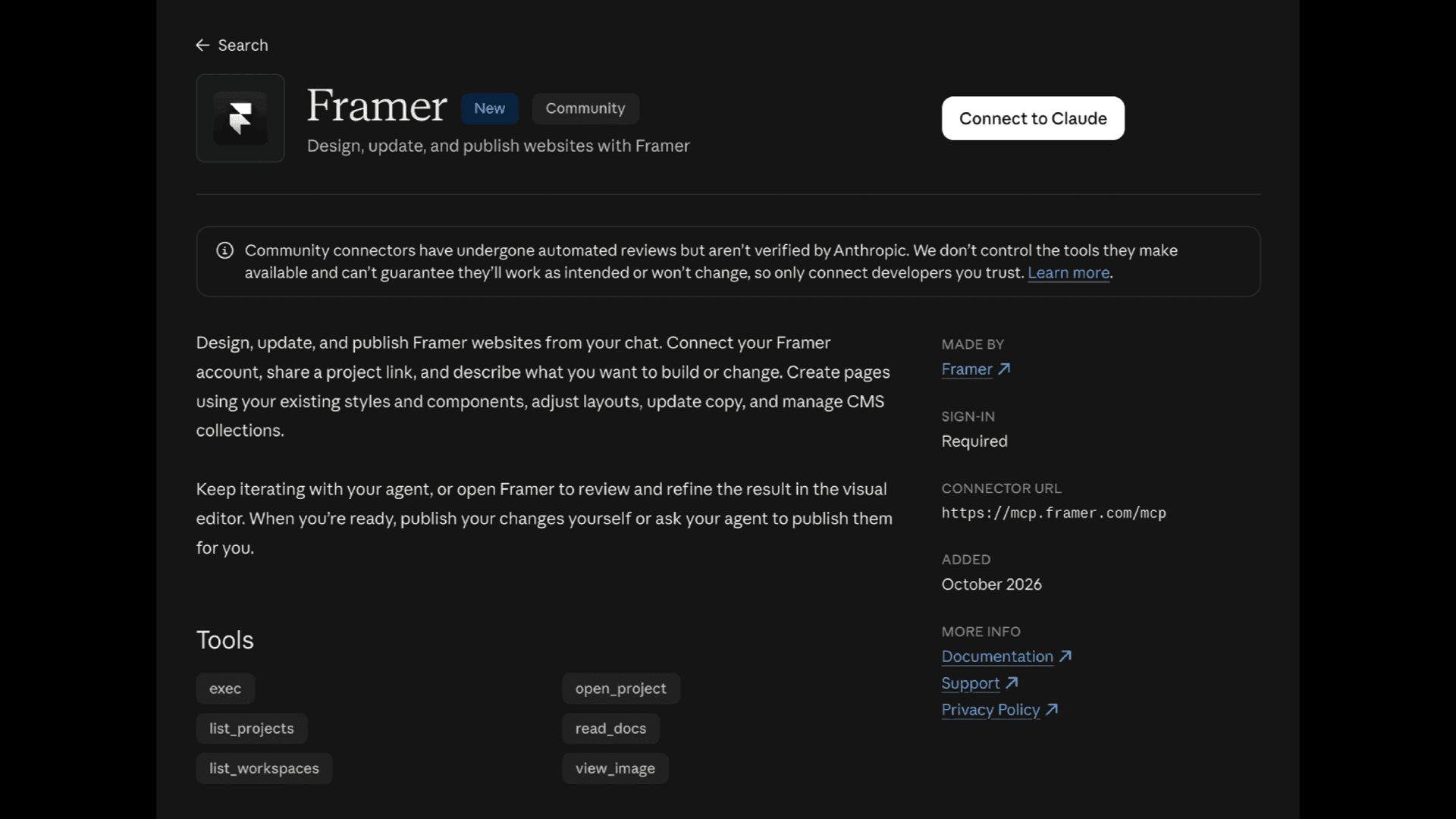
Framer’s page in Claude’s connector directory shows the server address and the tools Claude gets. Image: Framer
In Claude Code, from a terminal. If you already connected Framer in the Claude app and sign in to Claude Code with the same Claude account, it’s there already: type /mcp to check (Claude Code docs). If not, run three commands, once. Copy each one:
1. Add the server (--scope user makes Framer available in all your Claude Code projects)
claude mcp add --transport http --scope user framer https://mcp.framer.com/mcp2. Sign in (approve the connection in the browser window that opens)
claude mcp login framer3. Check it (confirm Framer shows as connected, then start a new session and paste your project link)
claude mcp listIn ChatGPT. Open the Framer plugin, select Install Plugin, then sign in to Framer and approve access. In a chat, ask ChatGPT to connect to your Framer project (Framer help).
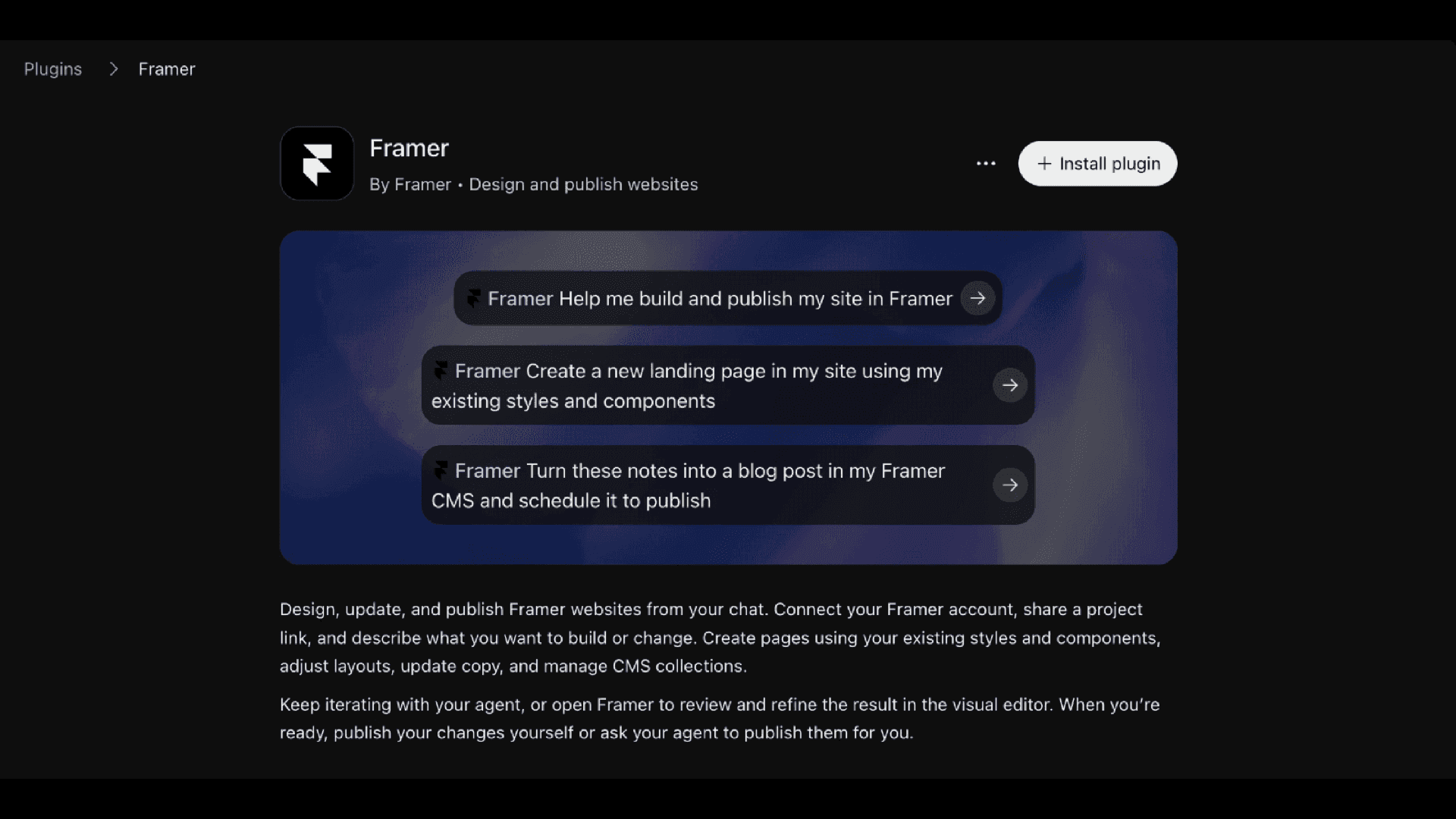
The Framer plugin in ChatGPT. Install it once, then ask ChatGPT to connect to your project. Image: Framer
In Codex. The same plugin works in the Codex app and CLI (type /plugins in the CLI). To add the server by hand, run codex mcp add framer --url https://mcp.framer.com/mcp, then codex mcp login framer, check it with codex mcp list and restart Codex (OpenAI docs). Codex comes with every ChatGPT plan, Free included.
In Cursor. Open Framer in the Cursor Marketplace and select Add to Cursor. Paste your project link in a chat, select Authenticate and allow access in the browser. To add it by hand, open Customize > MCPs > New MCP Server and paste the server address (Cursor docs).
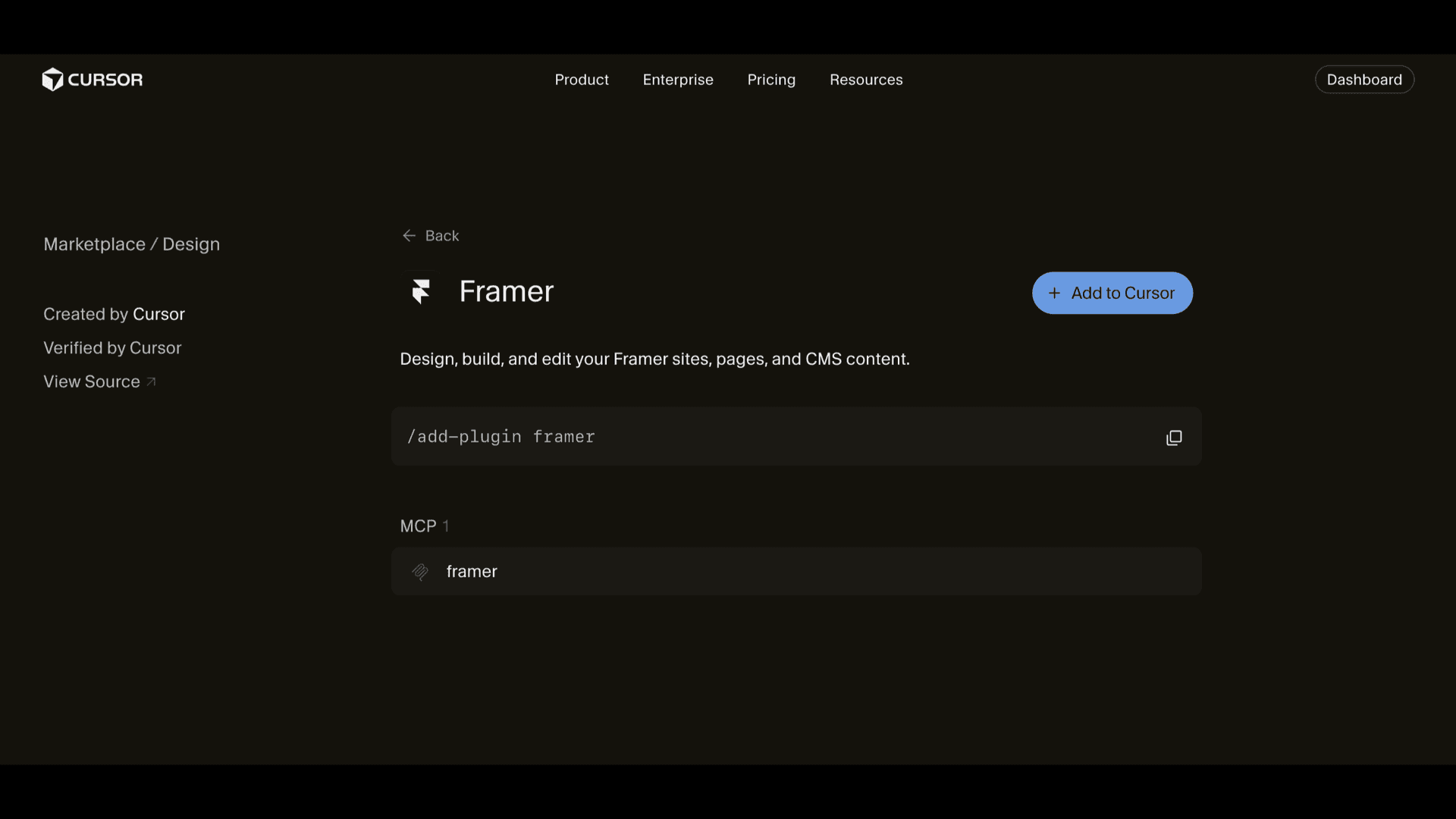
Framer in the Cursor Marketplace: one click, or the /add-plugin framer command. Image: Framer
In VS Code with GitHub Copilot. Open the Command Palette, run MCP: Add Server, choose HTTP, paste the server address and name it framer. On Copilot Business and Enterprise, an admin has to turn on MCP servers first (VS Code docs).
In Grok. In Grok Bot, open the Framer plugin and select Add to Grok Bot. On grok.com, add a custom connector with the server address under Connectors.
Anywhere else. Windsurf, Devin, Warp, Kiro, OpenCode, Pi, Notion, Antigravity and other tools that support remote MCP servers with OAuth connect the same way: add a server named framer, choose Streamable HTTP, paste https://mcp.framer.com/mcp and sign in to Framer when the browser opens (Framer help). Notion’s agent needs a Business or Enterprise plan.
Important: Ask the agent to create a branch and work there. Nothing goes live until you publish, or until you explicitly tell the agent to publish (Framer). Framer’s built-in Agent creates a branch for you when you prompt it from main (Framer Academy), so check which branch you’re on before each prompt.
We used Framer MCP on rango.design, our own Framer website, on October 29, 2026. The Framer connector from our Claude account showed up in Claude Code by itself, and Claude worked on a named branch and published only the branch preview. We haven’t run Framer MCP on a client website yet.
On Webflow? See how the same job works on Webflow.
Quick answer: Framer MCP, Framer’s Agent or External Agents?
Framer has three official ways to work with AI, as of October 2026. Use Framer MCP when you want Claude, ChatGPT or another AI tool to do long, repetitive jobs across many pages or CMS items. Use Framer’s built-in Agent for visual changes you want to watch land on the canvas. Use External Agents, the local @framer/agent CLI, for localization. Claude Code and Codex work with both MCP and External Agents; Framer recommends MCP for new connections (Framer help).
What matters | Framer MCP (remote) | Framer’s Agent (in the editor) | External Agents (local CLI) |
|---|---|---|---|
Where it runs | The Claude app, ChatGPT, Claude Code, Codex or another AI tool; Framer can stay closed | Inside the Framer editor, from Agent in the Properties panel | Claude Code, Codex or another coding agent on your computer, through the @framer/agent bridge, which must keep running |
Best for | CMS batches, SEO fields, audits, page and content edits | New sections, layout and copy changes, interactions from a screenshot | Localization, and workflows already built on the CLI |
What it costs | On every plan, Free included, and free during preview; your AI tool’s plan or credits cover usage | AI credits: 500 to try on Free, from 1,000 a month on Basic, from 3,000 on Pro | Not on Framer’s pricing page; your AI tool’s plan covers the AI usage |
Branches | Works in your project; ask it to create a branch | From main, it creates a branch for you | Every change lands on a branch automatically |
Publishing | Only if you explicitly ask it to | You review on the canvas, then publish | Only when you publish, or tell the agent to |
Limits | No localization yet | Pauses when your workspace runs out of AI credits | Can’t change project names or domains, assign overrides or read analytics |
Setup | Claude Directory or ChatGPT plugins, or a few commands in Claude Code or Codex | None |
|
Setup for each assistant is at the top of this guide. Any other tool that supports remote MCP servers and OAuth connects the same way (Framer help). Our examples use Claude because that’s what our team works in, but the prompts, safety rules and checklist apply to any assistant.
Already using the @framer/agent CLI? It still works. Framer now calls it External Agents, labels it legacy and recommends MCP for new connections (Framer). Keep it for localization, which MCP doesn’t support yet, or for workflows built on the CLI and its installed skills, the Framer instructions its setup adds to your agent. Both stay supported while MCP catches up (Framer help). Switching to MCP? npx @framer/agent@latest uninstall removes those skills (Framer on npm).
What is Framer MCP?
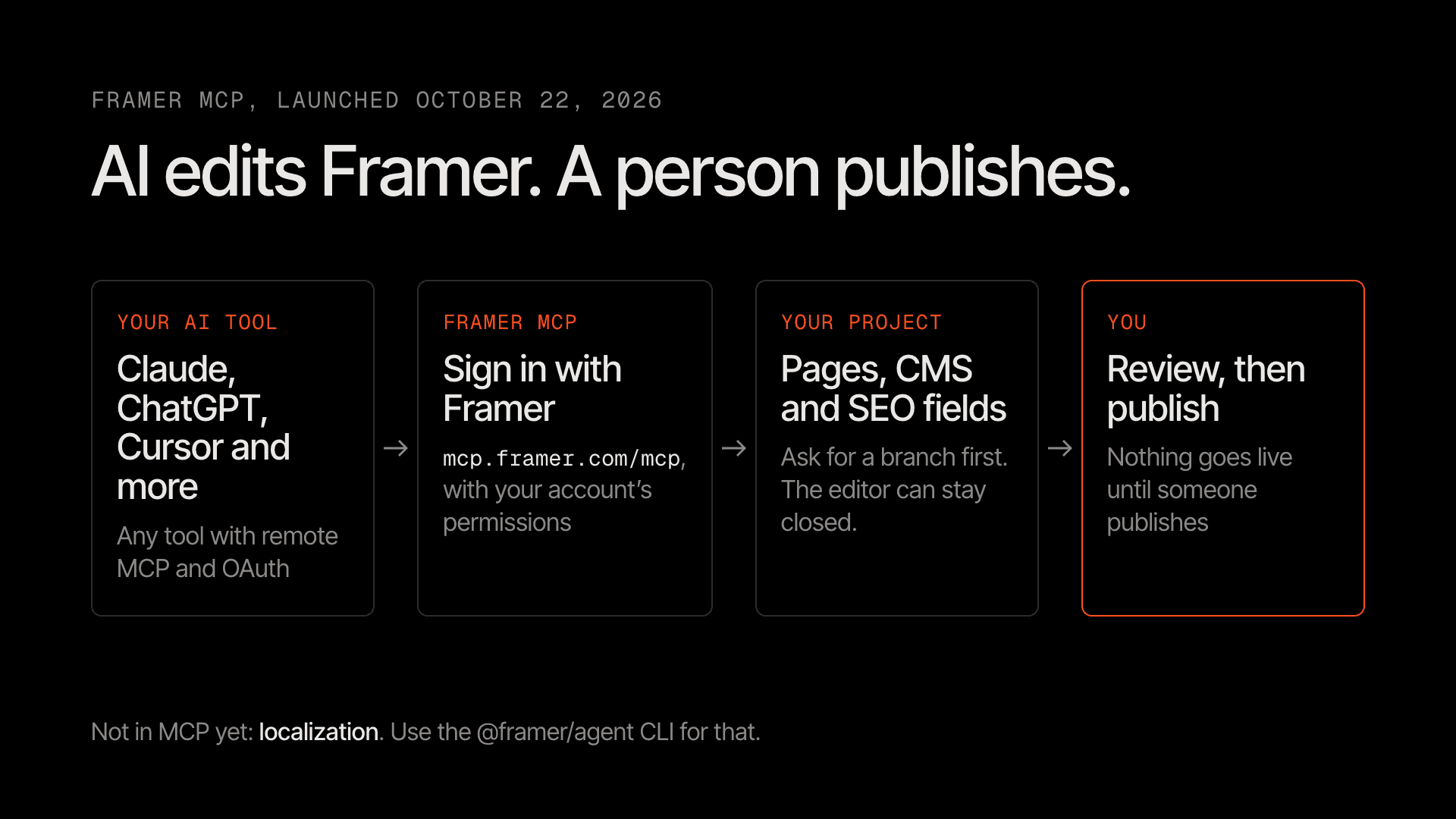
Our recommended Framer MCP workflow: your AI tool signs in with your Framer account and edits a named branch, and a person on your team publishes. MCP can also publish if you explicitly ask it to. Diagram: Rango
Framer MCP is Framer’s official MCP server, launched on October 22, 2026 (Framer updates). MCP, the Model Context Protocol, is the standard way AI tools connect to apps. Framer runs the server at https://mcp.framer.com/mcp, and any AI tool that supports remote MCP servers and OAuth can connect to it.
Three things are different from the older routes:
No local setup. It’s a remote server, so there’s no Node.js install and no command-line bridge to keep running.
Framer can stay closed. The agent works on any project your Framer account can access while the editor is closed. Open Framer to review the result.
It works where your AI tool works: chat apps like Claude and ChatGPT, coding tools like Claude Code, Codex, Cursor and VS Code, and, Framer says, your phone where the tool supports it.
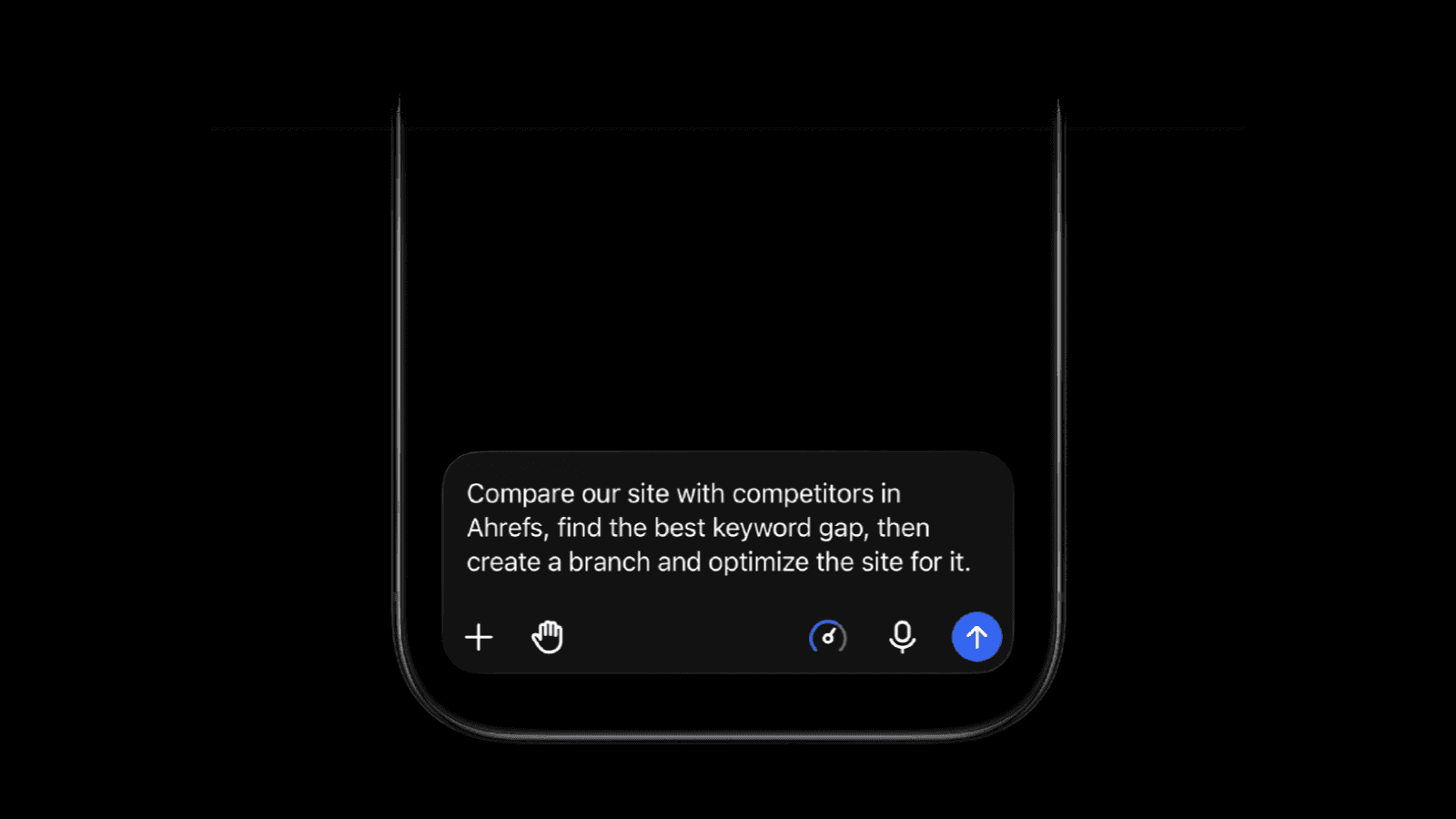
Framer’s example: one prompt checks Ahrefs for a keyword gap, then optimizes the website on a branch. Image: Framer
Before the launch, there was also a community MCP plugin. Its listing says it isn’t official, and it works only while the plugin is open in your project (Framer marketplace). Framer MCP adds the route most teams wanted: connect Framer to Claude like any other connector, then ask for changes in plain English.
What Framer MCP can and can’t do
Per Framer’s help center, once you approve the connection, your agent can (Framer help):
Create pages and edit layouts and content across desktop, tablet and phone, reusing your styles and components
Rebuild a page or a full website in Framer, using your existing website as a reference
Create CMS collections and items, update structured content and import content from sources your AI tool can reach
Review SEO and website quality: metadata, headings, alt text and page structure
Combine Framer with other tools connected to your AI tool, such as files, APIs or an SEO tool
Create a branch and make its changes there
Publish your website, if you explicitly ask it to (Framer)
What it can’t do yet: localization. For translations, use External Agents (the @framer/agent CLI). Framer lists no other gaps at launch, and its MCP page says agents work with the canvas, components, supported project settings and the CMS. For the CLI, it lists updating some project settings, such as project names and domains, assigning overrides to nodes and accessing analytics data as unsupported (Framer help), so we treat those as manual on every route for now.
Framer’s Agent works on content, layouts, interactions and code on the canvas, and works best one section at a time (Framer help). It can also set up CMS collections and items (Framer help), and since October 26 it can organize your assets (Framer updates).
What our team keeps manual on every route: deleting, renaming or moving pages, URL changes, code overrides, publishing and anything to do with domains.
Which should your team use?
Framer MCP in your AI assistant for repetitive, text-heavy jobs: 40 meta descriptions, a CMS collection built from a spreadsheet, an audit of every blog post. It follows a written checklist and works through long lists. Use it from Claude Code or Codex when the job needs files or scripts.
Framer’s Agent for visual and copy changes on a few pages: a new hero, an added section, an interaction rebuilt from a screenshot and a live URL. You watch each change land on the canvas. Framer launched it with Framer 3.0 in June 2026 (Framer blog).
External Agents (the @framer/agent CLI) for localization, until Framer MCP supports it.
Our default for a marketing team: Framer’s Agent for page edits and an AI assistant with Framer MCP for CMS and SEO batches, run by one trained person who also owns publishing.
How to use Framer’s Agent
Create a branch. Click the branch name (“main”), then New Branch. Branches are on the Pro plan or higher (Framer pricing).
Select the section you want to change on the canvas, so the Agent works on that area only.
Open Agent in the right-hand Properties panel and describe one change: the content, the layout, how many items and the style. Attach real assets, such as a logo or product photo, so it doesn’t use placeholders.
Refine in the same session, so the Agent keeps the context of what it just built.
Check desktop, tablet and phone on the canvas, then publish the branch to get a preview link. This doesn’t publish main.
Click Review Changes, then Apply to bring the work into main. Applying doesn’t publish; publishing main from the editor is what makes it live (Framer help).
Framer’s Agent generates and updates content, layouts, interactions and code on your canvas, and it accepts screenshots, wireframes and sketches as references (Framer help).
Note: the Agent runs on AI credits, as of October 2026: 500 to try on Free, from 1,000 a month on Basic and from 3,000 a month on Pro, with double credits in the first month on Basic and Pro (Framer pricing). Credits are shared across your workspace and don’t roll over, and top-ups need the AI Credits add-on (Framer help). Framer doesn’t publish a cost per task, so check your balance after week one.
Set up Framer MCP, step by step
The short version is at the top. Here are the details, including what to check on team plans.
Check your plans. Framer’s pricing page lists the MCP server on every plan, Free included, and free during preview (Framer pricing), and your AI tool’s plan or credits cover the usage (Framer). Claude’s directory connectors work on every Claude plan (Claude help), and Claude Code is included with Pro and Max (Claude help) and with Team and Enterprise seats that include it; check with your admin (Claude help).
Ask your admins first. On Claude Team and Enterprise plans, an Owner has to enable a connector for the organization before members can use it. ChatGPT workspaces, Copilot Business and Enterprise, and Notion have similar admin controls. In Framer, ask your workspace administrator whether MCP connections need approval (Framer help).
Connect. Follow the steps for your assistant at the top of this guide. In Claude Code, run the command below;
--scope usermakes Framer available in all your Claude Code projects (Claude Code docs):claude mcp add --transport http --scope user framer https://mcp.framer.com/mcpApprove the connection. Sign in to Framer in the browser window and approve access. In Claude Code, start this with
claude mcp login framer, finish signing in in the browser, then runclaude mcp listto confirm.Give it the full project link. Copy it from the browser’s address bar, or click Invite in Framer and copy the Project Link (Framer Academy). Framer’s troubleshooting advice is to use the link, not the project name.
Ask something read-only first, such as which CMS collections the project has.
Do you need a developer? Not for chat apps like Claude and ChatGPT, or one-click installs like Cursor and Grok Bot. For Claude Code or Codex, someone comfortable in a terminal runs a few commands once. Day to day, your team works in plain English.
Safety settings before the first edit
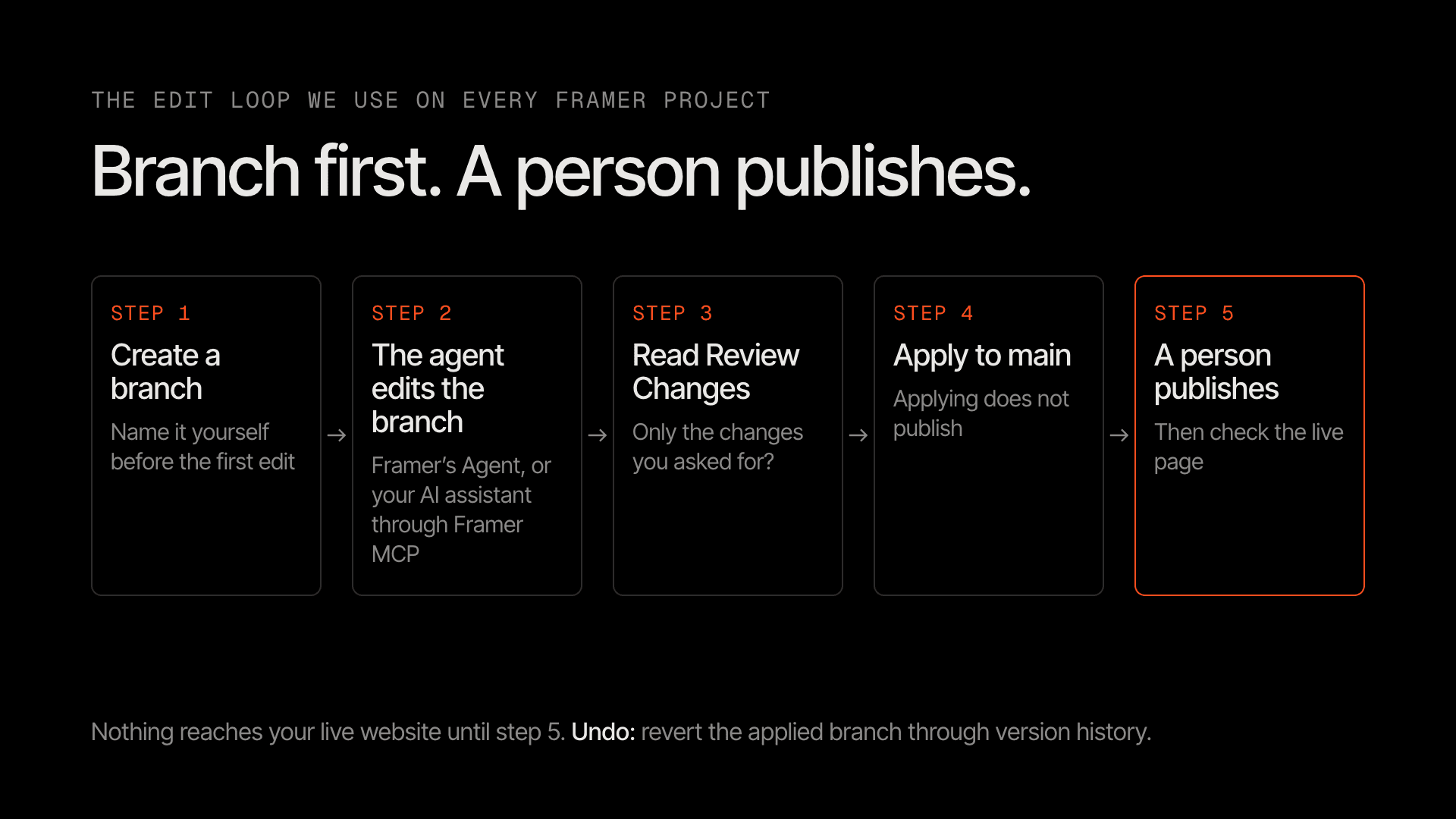
The edit loop we use on every Framer project: branch, agent edits, Review Changes, Apply, a person publishes. Diagram: Rango
Branch first, every time. Don’t count on a branch being created for you: ask the agent to create one, named after the task, and check the name in the editor before any write. The older CLI put every change on a branch automatically, and on our project an edit made while main was active landed on an auto-named branch we hadn’t created. Framer’s Agent creates a branch for you when you prompt from main; we still open a named branch first, so the work lands where we expect. Branches need the Pro plan or higher. On Basic, agent edits land on main, so start with read-only audits and draft CMS items, and check every change before anyone publishes.
One agent per project at a time. With the CLI, two agent sessions on one project made the active branch switch under both of them.
Ask for the plan first. Framer’s own advice for bulk updates is to have the agent explain the planned changes first and summarize the result afterward (Framer help).
Read Review Changes before you Apply. If it shows changes you didn’t ask for, don’t apply.
Keep approvals on. In any assistant, read each Framer action before you approve it, and don’t set write tools to run without asking. On Claude Team and Enterprise plans, an Owner can set the Framer connector’s write tools to “Needs approval” (Claude help). In Claude Code, switch to Manual mode and don’t pre-approve Framer’s write tools. Recent versions can start in auto mode, where a second model reviews actions instead of you, so check the mode shown in your session: press Shift+Tab until it shows Manual, or start with
claude --permission-mode manual(Claude Code docs).Never let it publish on its own. Framer MCP can publish your website if you explicitly ask (Framer). We tell the agent not to publish, and a person publishes from the editor after reading Review Changes.
Draft first. Ask for new CMS items and pages to be created as drafts, and have a person publish them.
Merge branches within days. A branch left open for a week can hold an old copy of a page, and merging it can put the old version back.
Know your undo. Reverting an applied branch moves its changes back into a draft through version history (Framer help).

Framer’s Branches panel lists each branch’s changes before you apply them to main. Image: Framer
Save the rules where your agent reads them
Write these rules down once instead of repeating them in every prompt. Copy this block:
# Framer rules- Work only on a branch named after the task. Confirm the branch before any edit.- Before changing anything, list the planned changes and wait for a yes.- Create new pages and CMS items as drafts.- Edit only the sentences or fields named in the task. Never rewrite a whole CMS body, and count embeds and images before and after.- Don’t delete, rename or move pages, and don’t change URLs, domains or project settings.- Never publish. A person publishes after reading Review Changes.- When you finish, list every change and anything you skipped.
Where it goes: in Framer’s Agent, create a Skill named framer-rules in Project Settings > Skills, paste the block as its instructions, then type /framer-rules in the Agent chat (Framer Academy). In the Claude app, paste it into a Project’s instructions and start your Framer chats in that Project (Claude help). For Claude Code, add it to CLAUDE.md; for Codex, add it to AGENTS.md. Keep the file in the folder you start the agent from, add to any rules already there instead of replacing them, and start a new session so the agent reads it (Claude Code docs, Codex docs). A rules file guides the agent but doesn’t enforce anything, so keep approvals on.
Prompts that work
Each ends with a check. Swap in your own names.
1. Audit, no changes (any route)
Audit [project link]: list pages and blog posts with a missing meta description or one over 155 characters, and images with no alt text. Give me a table. Don't change anything.
Verify: open three rows in Framer and confirm the agent read them correctly.
2. Plan check (Framer MCP)
Create a branch named [task name] in [project link] and confirm you're working on it. Then list the changes you propose. Creating the branch is the only change approved so far: wait for my yes before you edit content or publish.
Verify: the branch exists in the Framer editor, and main shows no new changes.
3. Hero rewrite (Framer’s Agent)
With the hero section selected: rewrite the headline and subhead for a VP of RevOps. Keep the layout and text styles. Show me two options before changing anything.
Verify: check tablet and phone too. A breakpoint can keep its own copy of a text layer and still show the old line.
4. Interaction from a reference (Framer’s Agent)
With the cards section selected: rebuild the hover effect from the attached screenshot and this live URL [URL]. Keep our colors and fonts.
Verify: hover on desktop, and check how the cards look on a phone, where there is no hover.
5. Meta descriptions in bulk (Framer MCP)
Draft meta descriptions under 155 characters for every blog post missing one. Show me the list and only write them after I say yes. Change that field and nothing else.
Verify: Review Changes should show description fields only.
6. One-sentence fix in a long article (Framer MCP)
In the blog post [slug], replace "[old sentence]" with "[new sentence]". Edit only that sentence; don't rewrite or re-save the body. Count the videos, images and embeds before and after.
Verify: the counts match, and the videos still play on the branch preview.
7. New case study as a draft (Framer MCP)
Create a draft item in the Case Studies collection from this doc [paste]. Upload the logo from [URL] with alt text. Leave it as a draft.
Verify: the CMS panel shows it as a draft, and its URL returns a 404 on the branch preview.
8. New page from your design system (Framer MCP)
On the branch [name] in [project link], create a responsive [page name] page using the project's existing styles and components, with the copy from [doc]. Don't publish.
Verify: check desktop, tablet and phone on the branch preview. Every text style and color should come from your existing styles, not new ones.
When “done” isn’t done: what we’ve seen on real Framer websites
An agent saying “done” is not the same as the page being right. We’re a verified Framer Expert, rango.design runs on Framer, and our Framer team has used AI agents on live Framer websites since September 2026. Lessons 1 to 8 come from that work in September and October 2026, using the @framer/agent CLI before Framer MCP launched. Lesson 9 comes from our first Framer MCP session, on October 29. They are observations from our projects, not documented limits, and Framer may have changed some behavior since.
1. The videos that vanished
A CMS article’s body was rewritten in full through the agent. The text was fine, but the two embedded YouTube videos were gone. We missed that in review, and the broken article reached production. The text version of the body the agent worked from left embeds out entirely, so it saw nothing to keep. Fix: edit sentences or fields, never whole bodies, and count embeds before and after.
2. The hidden draft that showed up
Writing to a hidden draft article’s body quietly switched it to published on the branch preview, where it appeared as the “Next” link under another article. Fix: check draft status after any CMS edit, and confirm each hidden item’s URL returns a 404 on the preview.
3. The edit on the wrong branch
With two agents on two branches of one project, the active branch flipped under both of them mid-task, more than once. An unchecked write lands on the other branch. Fix: one agent per project, and a branch check at the start of every session.
4. The links that followed the old page
To put a rebuilt page on an existing URL, we first moved the old page to a new path. Framer tracks internal links as references to pages, not typed URLs, so the nav, footer and homepage links quietly followed the old page, and the new page was linked from nowhere. Fix: keep URL changes a human job, then click every nav, footer and homepage link on the preview.
5. The menu that lost two items
After a branch merge, a shared nav component kept publishing its pre-merge version: two items were missing from the live menu while the project data was correct. Republishing didn’t help; a small edit to the missing items forced a rebuild. Fix: after every merge, check the live nav and footer.
6. The page that looked broken but wasn’t
Right after a publish, a page’s first load sometimes showed the website’s default title, and a branch preview showed an older title and meta description. Both looked like a failed SEO change. Framer says it optimizes each page on its first visit after a publish, so a page nobody has visited since can load unoptimized (Framer help). Fix: wait, revisit the exact URL and check the page source before you decide the edit failed. For us, adding a query string such as ?v=2 loaded a fresh copy.
7. The publish that said yes
Publishing from the agent sometimes failed with “Publishing is currently unavailable”, and on another day with “You do not have permission to publish this site”, so a person published from the editor. More than once, a publish reported success while an edit was still pending. Fix: judge the live page, not the agent’s summary.
8. The branch that would have undone a launch
A branch opened in early October still held its own copy of an article. By the time we checked, the live article had a new video and later edits, and merging the old branch would have put the early-October version back. Fix: merge branches within days, and before any merge, compare the branch’s pages with the live website.
9. The connection that dropped mid-task
Our first Framer MCP session, on October 29, 2026, lost its connection to Framer partway through. Reconnecting from Claude Code returned “Server not found”, although Framer’s own server was still up. Our work sat on branches, so nothing half-finished could reach the live website, and we finished the job with the External Agents CLI. Fix: keep every agent job on a branch, and keep the CLI set up as a fallback.
Our checklist: the next section turns these lessons into a list you can tick off on every change.
Want a second pair of eyes before your team goes live? We set this up on Framer websites: branch rules, the review routine, prompts adapted to your website and training for whoever publishes. See our Framer work or talk to us.
Your Framer agent checklist
Run through this on every change. Tick it off here, or copy it as a to-do list for whoever publishes. Your ticks are saved in this browser.
Your first 30 days on Framer
Week 1, read only. Connect Framer MCP in your AI assistant and try Framer’s Agent. Audit meta descriptions, alt text and outdated case studies. No writes. Decide who owns publishing.
Week 2, drafts on a branch. New posts and case studies as draft CMS items; bulk SEO fields drafted on a branch and checked in Review Changes, not applied.
Week 3, small live edits. Hero copy, CTAs and SEO fields: branch, preview link, Apply, publish from the editor, then the checklist.
Week 4, a routine. One branch per week, a short list of changes the agent proposes, one review, one publish.
What still needs a designer or developer
New page designs, sections and components. An agent can build a section, but matching your design system at every breakpoint is design work. When our agent duplicated a section, it copied the desktop layout but not the tablet and phone adjustments.
Page-specific code, such as structured data on one page. We add it as a custom code script in the project settings and choose the pages it runs on (Framer help).
Conversion work. An agent can pull numbers from your connected tools and draft changes, but choosing what to test needs someone who knows your buyers.
Diagnosing silent failures like the ones above.
The goal isn’t zero designers or developers. It’s nobody waiting in a queue for a headline change.
FAQ
Is there an official Framer MCP server?
Yes. Framer launched it on October 22, 2026. The server address is https://mcp.framer.com/mcp, and it works with Claude, Claude Code, ChatGPT, Codex, Cursor, VS Code, Grok and other AI tools that support remote MCP servers and OAuth.
Which AI assistants work with Framer MCP?
Any assistant that supports remote MCP servers with OAuth. Framer offers one-click setup for Claude, Claude Code, ChatGPT, Codex, Cursor and Grok Bot, and install guides for VS Code, Windsurf, Warp, Devin, Kiro, OpenCode, Pi, Notion, Antigravity and Grok.
What’s the difference between Framer MCP, Framer’s Agent and External Agents?
Framer’s Agent is built into the Framer editor and runs on Framer’s AI credits. Framer MCP is Framer’s remote server for Claude, ChatGPT, Claude Code, Codex and other AI tools, listed as free during preview. External Agents is the older local @framer/agent CLI, still needed for localization. Framer recommends MCP for new connections.
How do I connect Claude to Framer?
In the Claude app, open Framer in the Claude Directory, select Connect to Claude and approve access with your Framer account. In Claude Code, run claude mcp add --transport http --scope user framer https://mcp.framer.com/mcp, then claude mcp login framer. If you already connected it in the Claude app, Claude Code signed in with the same Claude account picks it up.
Does Framer MCP cost anything?
Framer lists the MCP server on every plan, Free included, and free during preview, as of October 2026. Your AI tool’s plan or credits cover the usage. Framer’s built-in Agent is what uses Framer’s AI credits.
Can Framer MCP publish my live website?
Yes, if you explicitly ask it to. Otherwise changes stay in your project or branch until someone publishes. We keep publishing a human job.
Does Framer need to stay open?
No. Once connected, the agent can work on any project your Framer account can access while the editor is closed. Open Framer to review the result.
Do I still need the @framer/agent CLI?
For localization, yes: Framer MCP doesn’t support it at launch. Keep the CLI, which Framer now calls External Agents, if your team has workflows built on it and its installed skills. Framer recommends MCP for new connections, and both routes stay supported while MCP reaches feature parity.
Can ChatGPT edit my Framer website?
Yes. Framer has a plugin for ChatGPT and Codex that connects through the same MCP server; install it from the ChatGPT plugins directory and approve access with your Framer account.
What does Framer’s built-in Agent cost?
It runs on AI credits: 500 to try on Free, from 1,000 a month on Basic and from 3,000 a month on Pro, shared across your workspace. Top-ups need the AI Credits add-on, and unused credits don’t roll over.
Is it safe to let AI edit a live Framer website?
It’s safer with a process: work on a branch, read Review Changes, create drafts first and check the page yourself before it goes live. Human review lowers the risk of a bad edit; it doesn’t remove it.
Want it set up for you?
Our team connects your Framer website to your AI assistant with the smallest safe access, sets up the branch and review routine, adapts these prompts to your website and trains the person who publishes. See our Framer work or talk to us.

Sagar Ludhiyani
Published On
Share on