
WordPress to Webflow Migration: A 5-Step Guide With AI

Free migration checklist: the full checklist is near the end of this guide. Tick it off as you go, copy it as a to-do list, or copy it into Claude or ChatGPT so your assistant follows it step by step.
Move WordPress to Webflow in 5 steps
For marketing and web leads at US B2B SaaS and AI companies. This workflow pairs assisted content transfer with human design, approvals and launch checks. Connect two things in Claude first: the Claude in Chrome extension (reads your old site) and the Webflow connector (writes to your new one). Then:
Map every URL. Build the inventory from several sources: the WordPress REST API, the sitemap, a crawl, existing redirects and Search Console. Don’t trust the sitemap alone.
Map content to Webflow. Pages become static pages. Posts and custom content types become CMS Collections. Approve the field mapping and the list of URLs that will change.
Rebuild the design natively in Webflow. A designer builds the templates. Then Claude reads posts in Chrome and creates them in your Collections as drafts, in batches.
Carry over SEO settings and redirects. Claude copies each page’s title, description, Open Graph and schema, and drafts a 301 redirect map. You review the flagged rows.
Launch on staging, check, then switch DNS. Compare old and new pages, test every redirect, connect your domain and submit the new sitemap.
No AI? The same 5 steps work with WordPress’s export file and Webflow’s CSV import. Both routes are below.
Where AI helps: CSV imports and scripts could already move content in bulk. In our migrations, the slow part was the work around them: reading each content type, matching fields and building the redirect list. Claude now does that repetitive work in batches and drafts the mappings for review. People approve the mappings, design the templates and verify the results.
Why the URL list matters: a sitemap isn’t the full list of your URLs. Our own site shows it: rango.design runs on Framer, and its sitemap lists 48 URLs. Outside it, we found 7 more public URLs: three old addresses that redirect, such as /contact-us; the contact form’s thank-you page, where our analytics counts enquiries; and three files we host, such as /llms.txt. On WordPress, the gap can be much bigger, because an SEO plugin can leave whole content types out of its sitemap. A migration planned from the sitemap alone misses all of them.
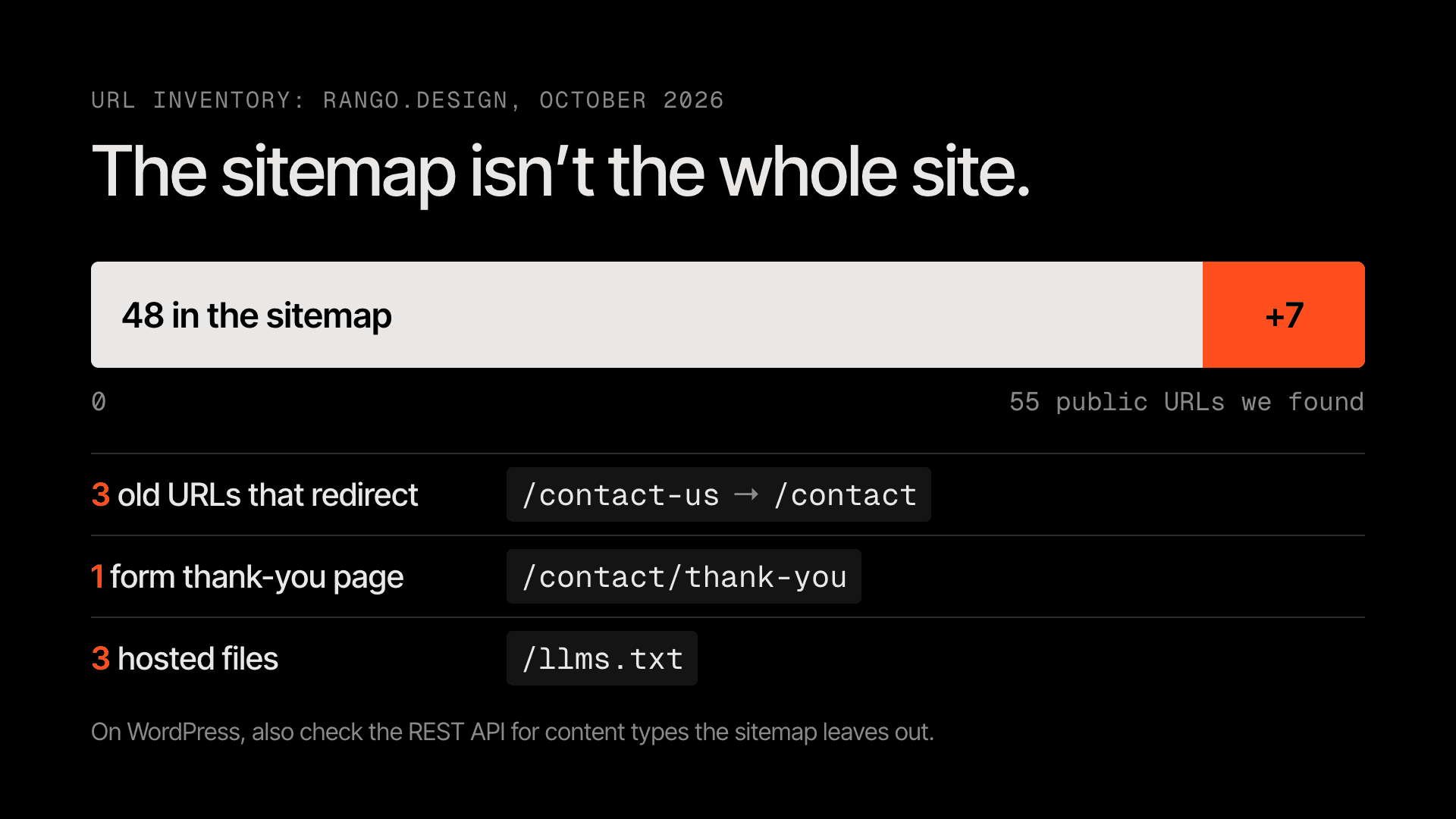
rango.design’s sitemap lists 48 URLs; redirects, a form thank-you page and hosted files add 7 more. Combine five sources before you plan redirects. Diagram: Rango
Documentation checked: October 26, 2026. Webflow introduced new plans in May 2026, and existing sites move to them on different dates, so check the limits shown for your own site before you import.
Quick answer: can you import WordPress into Webflow?
Not in one click. Webflow has no official WordPress importer. Its own guide says to export WordPress content as XML, convert it to CSV, import the CSV into a CMS Collection, upload media, set up 301 redirects and publish (Webflow Help Center).
Three ways to do it, as of October 2026:
Route | How it works | Best for |
|---|---|---|
CSV import | Export WordPress, convert to CSV, import into a Collection (4 MB per file) | Blogs and simple sites |
Webflow API or MCP | A script or an AI assistant creates CMS items for you; the bulk API takes up to 100 items per request | Large blogs, custom post types |
Third-party app | The WP to Webflow app says it imports posts, categories, tags and images from a live WordPress URL. Webflow reviews Marketplace apps but doesn’t endorse them, so test a small batch first | Straight blog moves |
In all three routes, the design doesn’t transfer. The site is rebuilt in Webflow; only the content moves.
Manual or AI-assisted: what changes
Task | Without AI | AI-assisted (Claude in Chrome + Webflow MCP) |
|---|---|---|
URL inventory | Export the REST API, the sitemap, a crawl, old redirects and Search Console, then reconcile them in a spreadsheet | Claude collects and compares the same sources; you resolve the gaps |
Moving posts | Convert the XML export to CSV, or write an import script | Claude reads posts in Chrome and creates CMS drafts in batches |
SEO fields | Export them with a plugin, or copy them page by page | Claude copies them from each live page’s head for you to review |
Redirect map | Built and checked in a spreadsheet | Claude drafts the CSV and flags rows for you to review |
Checks | A person tests URLs and key pages, then signs off | Claude runs the comparisons; the same tests and sign-off apply |
Design | Built by a designer | Still built by a designer |
The AI workflow, step by step
This is how our team runs WordPress to Webflow migrations now. It is our own workflow, not something Webflow or Anthropic documents as a pair.
Claude in Chrome reads the old site. It is Anthropic’s browser extension, on paid Claude plans, that can read and click through pages in Chrome (Claude help). It works in your normal Chrome window, so it sees each page the way a visitor does.
Webflow’s MCP server writes to Webflow. Connect it in Claude (Customize > Connectors > Webflow). It can create Collections and fields and manage CMS items (Webflow docs). Setup and safety settings are in our Webflow MCP guide.
Our team runs both from Claude Code. Anthropic’s coding agent can use the same Chrome extension (start it with
claude --chrome, on Pro, Max, Team or Enterprise plans) and Webflow’s MCP server (Claude Code docs, Webflow docs). One session can then read the old site, run the scripts that count and compare URLs, and create the CMS drafts. It uses your Chrome logins and pauses for you at any login page or CAPTCHA.A person checks every batch. Ask the assistant to create CMS items as drafts, then check their status in Webflow. After review, queue them and publish only to the webflow.io staging address. The MCP server can also publish items live, so tell the assistant never to publish items or the site without your go-ahead.

Who does what: AI handles the copying, and a person approves every batch before anything is published. Diagram: Rango
Prompts that work, each ending with a check:
List every content type: “Open yoursite.com/wp-json/wp/v2/types and list the content types exposed there, with each one’s rest_namespace and rest_base. Query each type’s endpoint with per_page=100 and follow the pages up to X-WP-TotalPages. Collect the public URLs, then report X-WP-Total next to the number you collected. Flag any type or endpoint you can’t read. Don’t change anything.” Check the counts against WordPress admin. Types hidden from the API won’t appear, so compare with your other URL sources too.
Read a batch of posts: “Read these 10 blog posts in Chrome. For each, give me the title, slug, date, author, categories, featured image URL and body HTML.” Check two posts by eye.
Create drafts: “Create these 10 items in my Blog Collection as drafts, using the field mapping I gave you.” Open each draft in Webflow before you publish.
Draft the redirects: “From my URL list, build a redirect CSV: old path, new path. Flag any URL that would redirect to the homepage.” Read the flagged rows yourself.
Important: Give the assistant one site and the smallest Webflow role that works, and start on staging. Use “Manually approve” mode in Claude in Chrome (Claude help) and Manual mode in Claude Code (Claude Code docs), and don’t pre-approve Webflow’s write tools. In Chrome’s classic side panel, approving Claude’s plan lets it act on its own within that plan, so keep each plan to one batch you’ve reviewed, and give a separate go-ahead before anything is published. Anthropic calls prompt injection (instructions hidden in web pages) the biggest risk for browser-using AI tools (Claude help).
Step 1: Get everything out of WordPress

Choose All content to export every content type and your menus in one XML file. The file links to your media rather than containing it. Image: WordPress.org
The export file: In WordPress, go to Tools > Export and choose “All content”. You get one XML file (WordPress calls it WXR) with posts, pages, custom post types, comments, custom fields, categories, tags and menus (WordPress docs).
WordPress.com sites: the export downloads as an XML file. Large sites, roughly 1,000+ posts or pages, get a .zip with several XML files by email (WordPress.com support).
Images are not in the export. The file only links to your media. Keep the old site online until every image is copied. WordPress.com has a separate Tools > Export Media Files option; what it downloads can depend on your plan and plugins (WordPress.com support).
Want CSV instead of XML? The free WP All Export plugin exports any post type and custom field straight to CSV (WordPress.org).
The full URL list: The REST API at yoursite.com/wp-json/ lists pages, posts and the custom post types registered for it (by default under /wp/v2/), up to 100 per page, with a total count in the X-WP-Total header (WordPress developer docs). Content types not exposed to the API won’t appear, so combine it with a crawl, the sitemap, existing redirects and Search Console, and record any gaps. Include category, tag and author archives, paginated pages, and PDFs or other files that people link to.
Audit what plugins do: list every plugin-powered feature (forms, CRM sync, analytics, search, popups, memberships) and decide its Webflow replacement before you build.
Set a content freeze date, so nobody publishes on WordPress while you migrate.
Note: Some sites block fast, repeated requests. On one of our migrations, the site’s firewall cut us off after about 200 requests in a row and recovered within the hour. Start slowly (around one request a second is our starting policy, not a documented safe rate), or read pages through a normal browser session.
Step 2: Map WordPress content to Webflow
WordPress | Webflow |
|---|---|
Page | Static page (or a CMS template if you have many similar pages) |
Post | Item in a “Blog” Collection |
Category, tag | A Collection, linked with a reference or multi-reference field |
Custom post type (case studies, testimonials, team members) | Its own Collection |
Featured image | Image field |
Author | “Authors” Collection, linked by reference |
Yoast or Rank Math title and description | SEO title and meta description in page settings; for CMS items, fields bound to the template’s SEO settings |
Check your plan’s CMS limits first. The plans Webflow sells as of October 2026 (Webflow pricing):
Plan | Price | Limits |
|---|---|---|
Starter | Free | 50 CMS items; no custom domain |
Premium | $25 a month, billed yearly | 20,000 CMS items and 40 Collections |
Team | $2,500 a month, annual contract | 100 Collections |
Note: these are the plans sold since May 13, 2026. An existing site moves to them at its next renewal or billable change, from June 29, 2026, or from November 16, 2026 for sites in Freelancer or Agency Workspaces and some older pricing. Until then, the old CMS plan allows 2,000 items and 20 Collections (Webflow Help Center).
CMS URLs live under a folder. Every Collection item gets a path like /blog/post-name. If your posts sit at the root (/post-name), every post needs a redirect.
CSV field gotchas: names and slugs must be under 256 characters. Image fields need a direct image URL. File fields can’t be imported. Rich text accepts HTML, but unsupported elements may be stripped. A CSV import doesn’t guarantee drafts: Webflow can set imported rows to Staged for publish, so check each item’s status and save any you haven’t approved as drafts before you publish the site (Webflow Help Center).

After an import, read the Status column: an item that shows Staged for Publish goes live with your next site publish. Image: Webflow
Step 3: Rebuild in Webflow
Build natively. Use real Webflow elements and classes, not pasted HTML or scripts that inject layout. On a site we inherited, layouts built with injected scripts and overrides took weeks to clean up.
Watch for duplicate content. Page builders like Elementor can hide a mobile copy of a section on desktop. Copy the HTML as-is and you may publish paragraphs twice.
Tablet and phone: Webflow’s Tablet breakpoint covers every width at or below 991px. A style set for tablet also applies to phones unless you set the phone breakpoints separately.
Re-host every image in Webflow. Nothing should point at the old WordPress domain, or images break the day you switch it off.
Import the CMS last, after templates and fields are final. Webflow offers a site backup before a CSV import, and you can export a Collection to CSV as an extra safeguard (Webflow Help Center).
Check for gated content before you extract, not after. On one site, the REST API returned member-only content that the website hid behind a login. Keep gated content out of public CMS pages.
Step 4: Carry over SEO settings and redirects
Your SEO plugin writes most of these into each page’s head, so they don’t appear in the content you copy. Read them from the live page, and check the whole rendered page for schema, which can sit in the body as well as the head:
Title and meta description: copy them exactly. A migration is not the moment to rewrite them.
Open Graph title, description and image: Webflow has fields for all three. Re-host the share image in Webflow.
Canonical tag: Webflow does not add one by default. Set “Global canonical tag URL” in Site settings > SEO (Webflow Help Center).
Schema (JSON-LD): add it in Page settings > Schema markup and update any identifier or URL that changes. On a Collection template, bind the Collection fields so each item page gets its own schema; Reference, Multi-reference and Multi-image fields aren’t supported there. Keep schema in one place, not in both that field and custom code, then validate the published page (Webflow Help Center).
Robots and sitemap: turn on sitemap auto-generation in Webflow; it adds the sitemap to robots.txt, which you can edit. Yoast’s extra robots settings (max-image-preview:large and similar) have no Webflow field; add them in custom code if you need them.
Internal links: update links inside your content to the new URLs, so visitors don’t pass through redirects.
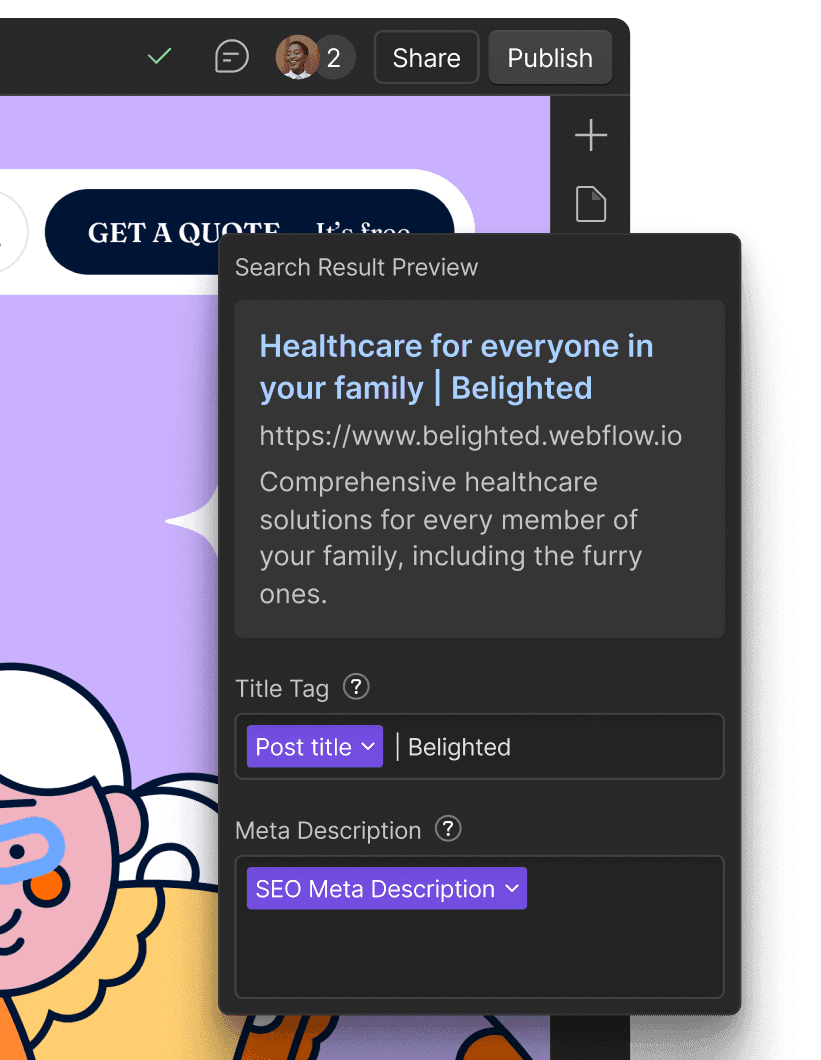
On a Collection template, bind the title tag and meta description to CMS fields, so each item gets its own values. Image: Webflow
Keep one URL map. One row per old URL: where you found it, where it goes and whether it’s approved. For example:
Old URL | Found in | Goes to | Status |
|---|---|---|---|
/2024/05/webflow-vs-framer/ (post) | REST API, sitemap | 301 to /articles/webflow-vs-framer | Approved |
/customers/acme/ (case study) | Search Console, crawl | 301 to /case-studies/acme | Approved |
/contact/thank-you/ (form page) | Form settings, analytics | Keeps the same URL | Approved |
/tag/old-news/ (tag archive) | Crawl only | 410, removed on purpose | Needs review |
Redirects, the part that protects your traffic:
Add a 301 for every changed URL in Site settings > Publishing > 301 redirects (paid plans) (Webflow Help Center).
Use patterns: Webflow supports capture groups, so one rule like /blog/(.*) to /articles/%1 can cover a whole folder. Webflow recommends staying under about 1,000 rules.
Bulk import by CSV, carefully. Importing a redirect CSV replaces every existing redirect, and one bad row fails the whole file. Export the existing redirects first, merge the approved additions, validate the file and keep a copy before you import (Webflow Help Center).
Redirect straight to the final page. No chains, and don’t send unrelated old pages to the homepage; Google may treat that as a missing page. Unchanged URLs need no redirect, and content you remove on purpose can return a 404 or 410. Keep redirects for at least a year (Google Search Central).
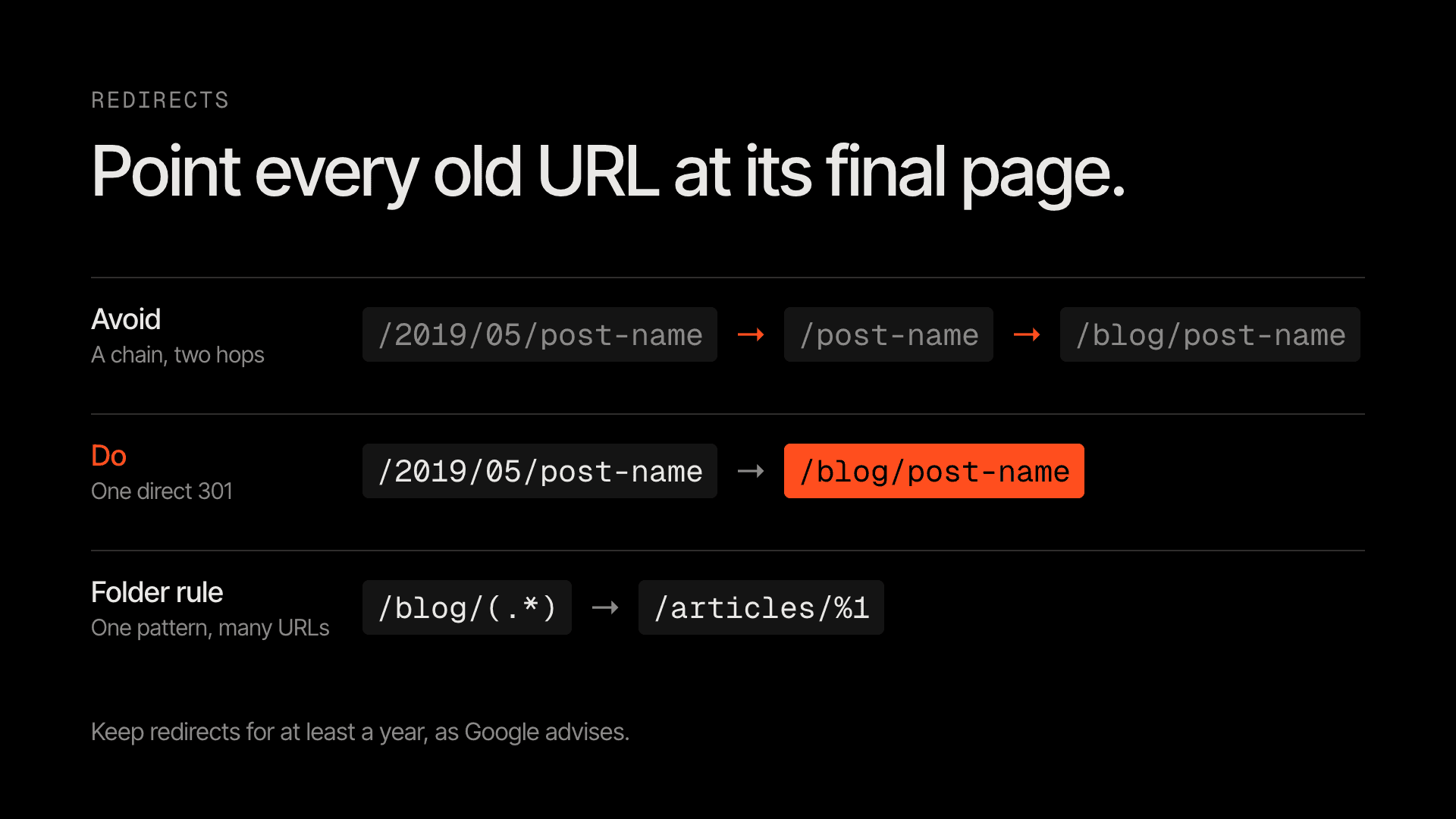
One direct 301 for each old URL, and pattern rules for whole folders. Diagram: Rango
Step 5: Launch, check, switch the domain
Publish to the webflow.io staging address first. Review the CMS drafts, queue the approved ones and check the other pending changes, then publish to staging only. Turn off Staging indexing in Site settings > SEO, and leave it off after launch (Webflow Help Center).
Compare every key page’s title, description, canonical and Open Graph tags in the published HTML, not in the Designer, and check the whole page, head and body, for schema. Depending on settings, an empty Open Graph field may fall back to the SEO fields or leave the tag out, so read the HTML.
Test what plugins used to do: demo and contact forms, CRM sync, analytics events and search. Then check page speed and keyboard navigation on your main templates.
If a publish says it worked but nothing changes, open the Designer’s Publish dialog. On one of our sites, a single invalid CSS rule blocked every publish while the API kept reporting success.
Go live with a rollback owner. Name who can switch DNS back to WordPress, keep the old site running, and agree in advance what triggers a rollback, such as broken forms or a jump in 404 errors. Verify domain ownership, choose the default domain, publish to production, then switch DNS using the records in Site settings > Publishing. The standard records are an A record to 198.202.211.1 and a CNAME for www to cdn.webflow.com, but some sites show different values. Changes usually show within a few hours, up to 48 (Webflow Help Center). Then confirm HTTPS, redirects, forms and tracking.
Test every URL from your inventory: unchanged URLs return 200, moved URLs return one direct 301 to a working page, and removed pages return an approved 404 or 410. Submit the new sitemap in Google Search Console and keep monitoring indexing and traffic. Google says changes on medium sites can take “a few weeks or more” to be processed.
Fix what broke on real migrations
The sitemap missed public URLs. Fix: combine the REST API, sitemap, crawl, existing redirects and Search Console, then resolve the gaps.
Blog posts had moved URLs before. Old /blog/ links already redirected once; adding a new hop made chains. Fix: point every old URL straight to its final page.
Member-only content was public in the API. The REST API returned content that the site hid behind a login. Fix: check what the API exposes, and keep gated content out of public CMS pages.
Page-builder duplicates. Hidden mobile copies doubled every section. Fix: strip hidden responsive widgets before import.
Images still loaded from WordPress. Fix: re-host every image and search the published HTML for the old domain.
Share cards lost their image. An empty Open Graph field produced no tag at all. Fix: check the published head, page by page.
Phone layouts drifted. Tablet styles applied to phones. Fix: set phone breakpoints explicitly and compare at 390, 768 and 1440px.
Your migration checklist
Every step above as one checklist, with the approvals a person should sign off. Your ticks are saved in this browser.
What it costs and how long it takes
Time and cost depend on five things: the number of page templates, CMS items, custom post types, integrations (forms, CRM, analytics) and URLs that change. A small brochure site needs far less mapping and testing than a site with thousands of posts and several content types.
Our fixed prices for WordPress to Webflow migrations, by site size, as of October 2026:
Site size | Usually includes | Fixed price |
|---|---|---|
Up to 25 pages | A blog, one or two Collections and standard forms | $2,000 to $4,000 |
25 to 100 pages | Several Collections or custom post types, plus CRM and analytics wiring | $4,000 to $9,000 |
More than 100 pages | Thousands of CMS items, gated content, complex redirects and integrations | From $9,000, quoted after an audit |
These prices reflect our AI-native workflow. Claude does the repetitive inventory, field mapping and copying in batches, so more of your budget goes to design, review and testing. We set the exact price after we have reviewed your URL inventory, so the number reflects your real site. Our website migration service page shows how we run the whole move, and our Webflow development page covers builds and CMS architecture.
FAQ
Can I import WordPress into Webflow automatically?
Content, yes; design, no. Use CSV import, the Webflow API or MCP, or a third-party app such as WP to Webflow. The design is always rebuilt in Webflow.
Is there a WordPress to Webflow converter or plugin?
There is no official one. Webflow’s documented route is to export WordPress content, convert it to CSV and import it into a Collection. The third-party WP to Webflow app says it imports posts, categories, tags and images from a live WordPress URL, and the free WP All Export plugin exports posts and custom fields to CSV. Test any tool on a small batch first. None of them converts your design.
Does the WordPress export include my images?
No. The XML export only links to your media files. Keep the old site online until every image is copied into Webflow.
Will I lose my Google rankings when I move to Webflow?
Rankings can fluctuate after any migration. Google says permanent redirects don’t cause a loss in PageRank, but they don’t guarantee rankings. Preserve your content and SEO fields, redirect changed URLs directly to their new pages, set canonicals, and monitor indexing and traffic.
How many redirects can Webflow handle?
There is no hard limit, but Webflow recommends staying under about 1,000 rules and using capture-group patterns to cover whole folders.
Which Webflow plan do I need for a blog?
Any paid plan with a CMS. On the plans sold since May 13, 2026, Starter allows 50 items and can’t host your custom domain; Premium allows 20,000 items and 40 Collections, which covers most B2B SaaS and AI company blogs. A site still on the older CMS plan has 2,000 items and 20 Collections until it moves to Premium at a renewal or billable change.
How do I migrate a WordPress blog to Webflow?
Create a Blog Collection with fields for the title, slug, original publish date, author, categories, tags, featured image, body and SEO fields, and bind the SEO fields to the Collection template. Import a test batch, check each item’s content and status, then import the rest by CSV, the Webflow API or MCP, or a third-party app, and re-host every image in Webflow. Posts move under a folder such as /blog/post-name, so add a direct 301 for every post whose URL changes.
How long does a WordPress to Webflow migration take?
It depends on templates, CMS items, content types, integrations and how many URLs change. Large sites take longer because of the URL map, CMS mapping and testing. After launch, Google can take a few weeks or more to process changed URLs on medium sites.
Can AI do a WordPress to Webflow migration?
It can handle the repetitive parts: Claude in Chrome reads the old site, and Webflow’s MCP server creates CMS drafts and helps draft the redirect map. A person still designs the site, approves the mapping and checks every batch, the redirects and the published pages.
Free migration assessment
Send us your WordPress URL. We’ll review it and come back with a migration triage (content types, URL changes, risks) and a fixed quote. We’re a Webflow Certified Partner, and our WordPress to Webflow migrations follow the workflow above. Book the assessment

Sagar Ludhiyani
Published On
Share on